Search

Drop Down MenusCSS Drop Down MenuPure CSS Dropdown Menu
Showing posts with label Xamarin. Show all posts

Saturday, December 28, 2019

How to Prevent memory leak and Profiling in Xamarin applications


Mobile Application planning, development, testing and  deployment go well as per the customer estimation but after a while the client was clamoring that the app is getting slower and slower when it was continuously being used up to the point where it will just crash suddenly but most of the developer unaware why it’s like this. In this article, you are going to learn how to use prevent memory leak and profiler in Xamairn Application. 

Garbage Collection:

We all know that in the .NET world we have a very good friend called Garbage Collector. Basically, it is responsible on freeing up the used memory. As simple as it sounds, whether you are in a Desktop, Web or especially mobile where there are two worlds one is Managed and the other one is the native part which at times Garbage Collection is not enough to reclaim those used memories the cause of the slowdown Mobile app is due to Memory Leaks.

Beware of common memory leak sources:

You do incorrect memory management wherein an object is stored in memory but cannot be accessed by the running code, it’s always causing a memory leak in mobile application. We all Knows what we can’t do but still we are doing as like below image, Same in Mobile Development also we all knows what can’t do, but still we are doing same mistake. 
I suggest to be extra careful when using below C# feature, and proactively check for memory leaks with techniques like the last best practice.
  • Events, delegates or Messaging Centers in .NET are notorious for causing memory leaks. You can innocently subscribe to an event, causing a damaging memory leak without even suspecting. 
  • Custom control and Unknown Nuget package are event registered, such as Loaded, will not be unloaded until all events are unregistered. Always remember to unregister your events when you don't need them anymore and we are not sure all the objects or disposed.
  • Images is a classical .net GC-Java GC problem when GC isn't aware of image size and won't release reference unless it is Disposed.
  • Static variables, collections, and static events in-particular should always look suspicious. Remember that all static variables are GC Roots, so they are never collected by the GC.
  • Caching functionality in mobile apps is necessary, any type of caching mechanism can easily cause memory leaks. By storing cache information in-memory, eventually, it will fill up and cause an OutOfMemory exception. 
  • Bindings can be dangerous. The rule of thumb is to always bind to a DependencyObject or to a INotifyPropertyChanged object. When you fail to do so, Xamarin will create a strong reference to your binding source (meaning the ViewModel) from a static variable, causing a memory leak
  • Threads that never terminate – The Live Stack of each of your threads is considered a GC Root. This means that until a thread terminates, any references from its variables on the Stack will not be collected by the GC. This includes Timers as well. If your Timer’s Tick Handler is a method, then the method’s object is considered referenced and will not be collected. 

Preventing Memory Leaks:

Enterprise Mobile application knows memory leaks are like overloaded people in a Bus or train. You might not notice when there are few of them, but you always make sure people enter in the bus with very limited and identify bus capacity based on that you need to allow the people into the bus. In Mobile application you should define to developer with strike rule and TODO List and make sure your code review taken care following option for prevent memory leaks 

Using Statement:

Xamairn Mobile application constantly uses unmanaged resources. The .NET framework itself relies heavily on unmanaged code for internal operations, optimization. Anytime you use Streams, Graphics, or Files for example, you are probably executing unmanaged code. The using statement transforms the code into a try / finally statement behind the scenes, where the Dispose method is called in the finally clause.
public void CreateFile()
{
    using (var stream = new FileStream(@"\Document\SomeFile.txt",
                                       FileMode.OpenOrCreate))
    {
        // do stuff

    }// stream.Dispose() will be called even if an exception occurs


Dispose pattern:

You implement a Dispose method to release unmanaged resources used by your application. The .NET garbage collector does not allocate or release unmanaged memory. The Dispose method performs all object cleanup, so the garbage collector no longer needs to call the objects' Object.Finalize override. Learn more MSDN portal .
public void Dispose()
{
   // Dispose of unmanaged resources.
   Dispose(true);
   // Suppress finalization.
   GC.SuppressFinalize(this);
}


Test for memory leaks:

It’s a great practice to proactively test for memory leaks. And it’s not that hard. Here’s a short pattern you can use in the unit testing project.
[Test]
void MemoryLeakTest()
{
  var weakRef = new WeakReference(leakyObject)
  // Ryn an operation with leakyObject
  GC.Collect();
  GC.WaitForPendingFinalizers();
  GC.Collect();
  Assert.IsFalse(weakRef.IsAlive);
}


Getting Started Profiling:

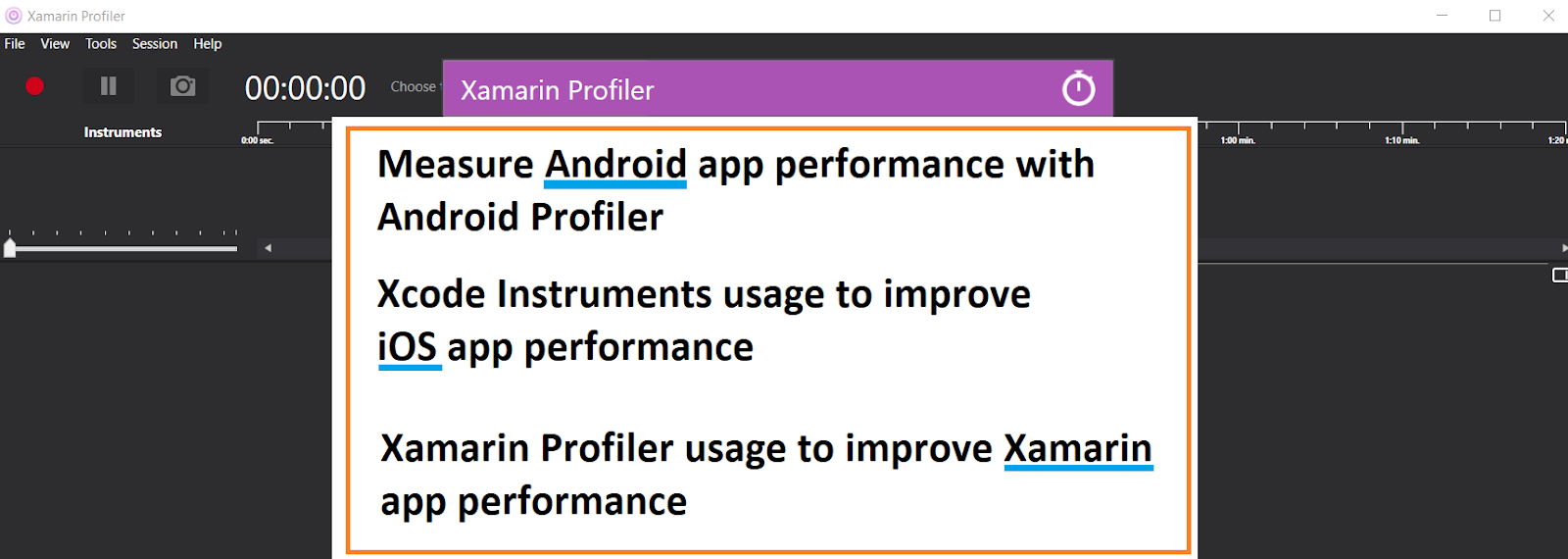
Xamarin Profiler is a great tool created by Microsoft wherein it gives developers ways to profile or collect telemetry with your Mobile Applications using Visual Studio. It can also be paired with native profilers, like Xcode Instruments and Android Profiler, to ensure better app behavior and performance. The main function of the profiler is to collect and displays information about the Mobile App wherein the Developer can pinpoint, analyze and optimize areas in their application for a smooth experience by end users. There are different ways the Xamarin Profiler can help us like statistical.
The Xamarin Profiler has many features Allocation, Cycles, Data presented on each screen and Time profiler. It’s a graphical interface for the Mono log profiler, and supports profiling for following platform in Windows and mac machine.
  • Android, iOS, tvOS, and Mac applications on Mac
  • Android, iOS, and tvOS applications on Windows.
In this section, will learn common profiling scenarios and analyze and optimize iOS and Android applications.

Prerequisites:

We need Visual Studio Enterprise subscriber to unlock Profiler feature in either Visual Studio Enterprise on Windows or Visual Studio for Mac on a Mac. Download install following package in your mac or windows machine.
After successful installation, let get satrt use Profiling in Xamarin iOS and android application. Integrate Profiling is very simple steps, you need changes Project Property options in iOS and Android Project. 
Create new Xamairn Forms project using Visual Studio and Select iOS and Android platform is supported and follow below two steps for enabling the profiling in iOS and Android Project.

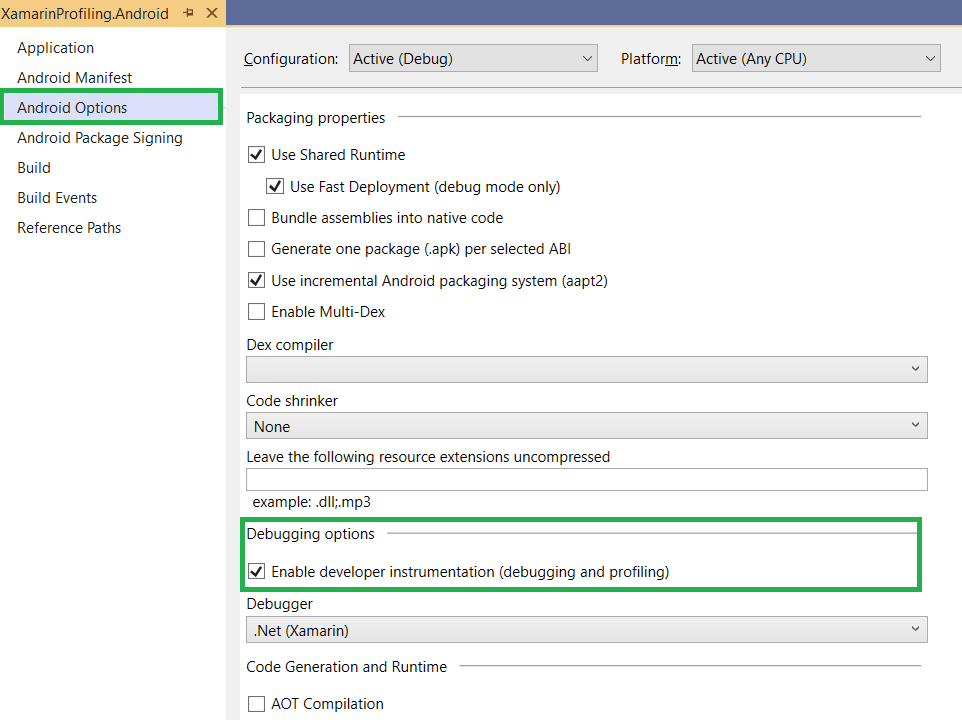
Android:

In Android Project, Right click on project > Select property > Select “Android Options” > Select options “Enable developer instrumentation”.

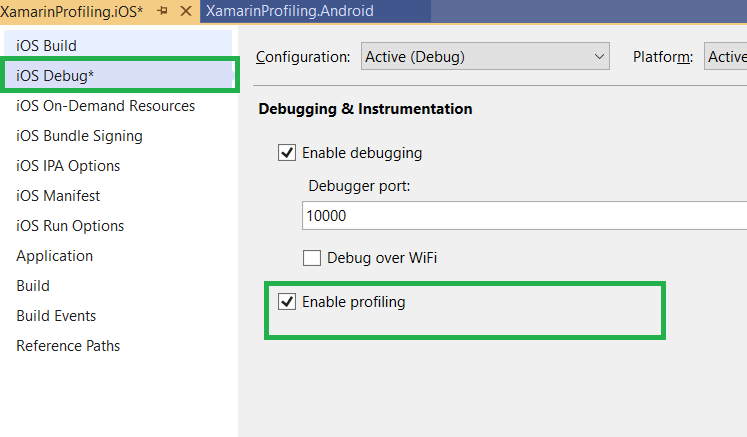
iOS:

In iOS Project, Right click on Project > Select Property > Select “iOS Debug” Options and check the check box “Enable Profiling”.

Start the Xamarin Profiler:

Step 1: Build and run the application in iOS or Android. 
Step 2: In Visual Studio menu, Select Analyze or Tools main menu > Select Xamarin Profiler and open the Profiler and make sure before open profiler, the application needs to be built at least once in order to start a profiling session.
The Xamarin Profiler comes with following instruments: 
  • All Instruments
  • Allocations. 
  • Time Profiler. 
Once you have selected a Allocations options and you can also configure some options of how the memory profiling will proceed. You can either customize the frames, frequency or either select from the presets as shown below image.
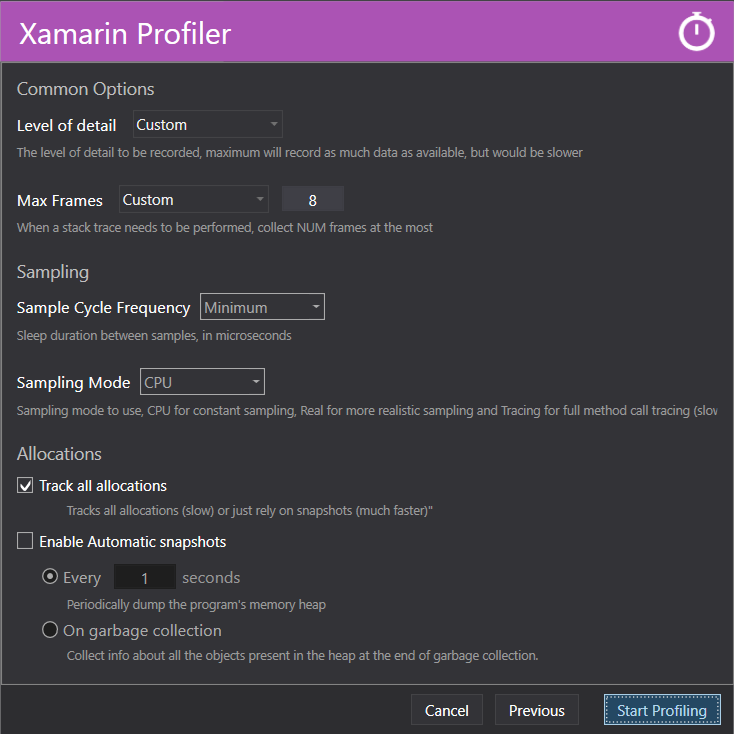
Once you have clicked the Start Profiling button it will automatically launch your selected application on the selected device and you will be greeted with this window
In that above image denoted number with green marked and detail info below 
  • No 1 - Represents the actual graph of the Memory consumption with respect to time.
  • No 2 - Represents the different data categorized on your selected tab.
  • No 3 -Represents the information (Object name, count, size) displayed based on the selected tab.
  • No 4 - Represent the real time display of information based on the current snapshot.
  • No 5 - Represents the Selected device and the Application that is currently running.

Snapshots:
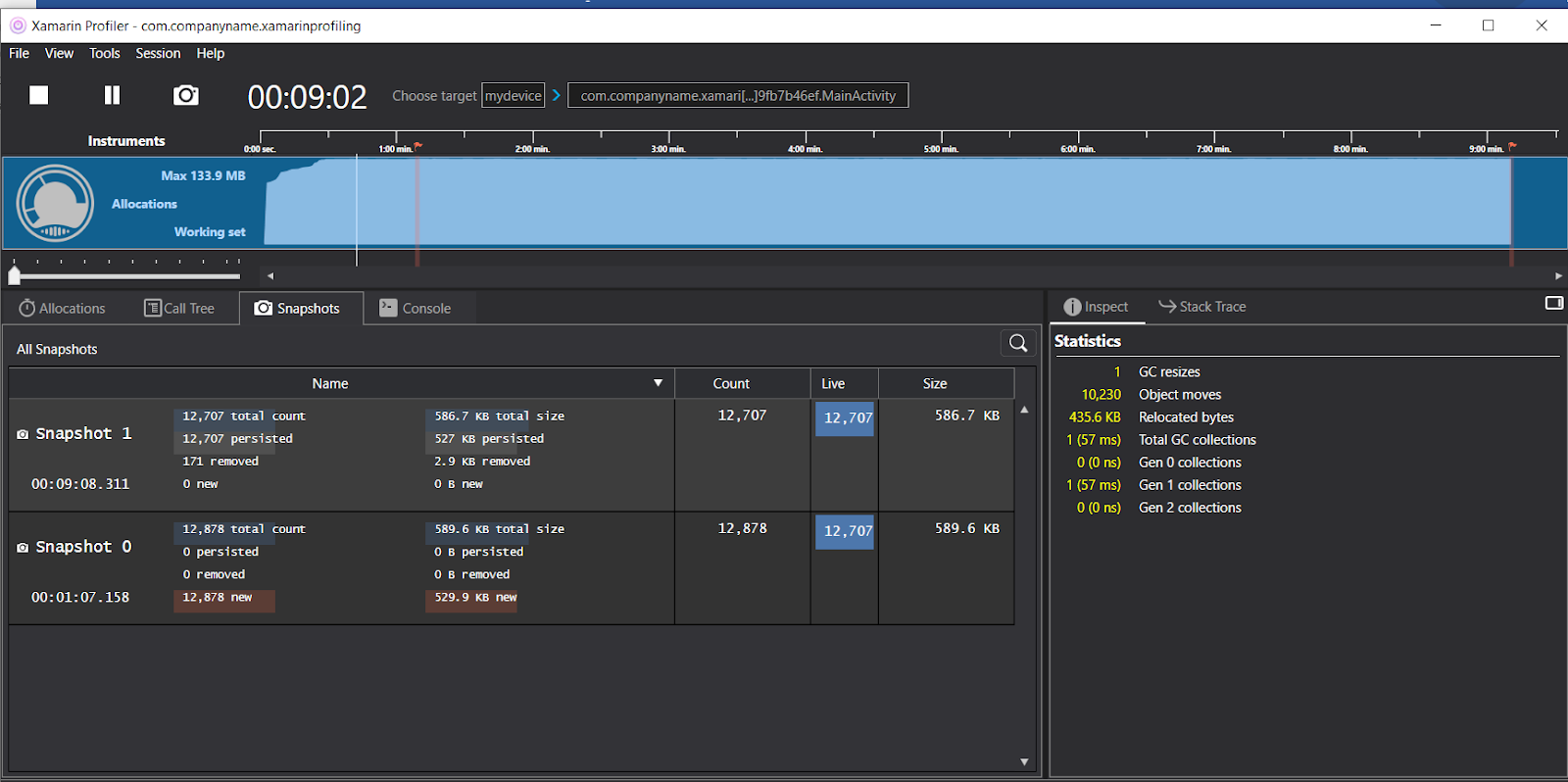
Snapshots pane displays information about memory snapshots. To generate these while profiling a live application, click the Camera button in the toolbar at each point that you'd like to see what memory is retained and released. You can then click each snapshot to explore what is happening under the hood. Note that snapshots can only be taken when live profiling an app.

Time Profiler

The Time Profiler instrument measures exactly how much time is spent in each method of an application. The application is paused at regular intervals and a stack trace is run on each active thread. And Call Tree options will show amount of time spent in each method.
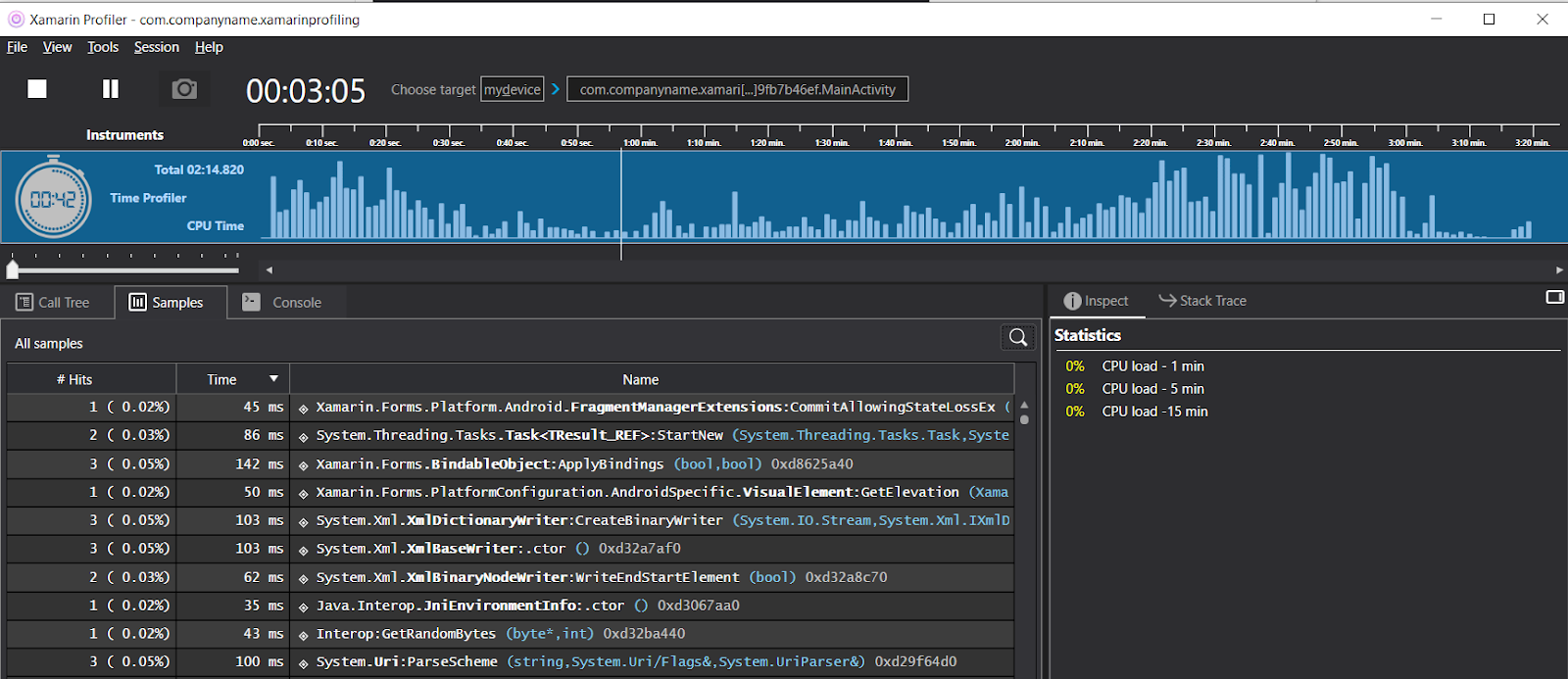
I hope you enjoyed for learning profiling and prevent memory leak issue. Let me state that Profilers are not only for memory leaks but also can be used in code optimization. Finally moving forward maybe you can also adapt or put in your development routine the profiling of your mobile applications.

Summary

I hope this article gave you some value to you, let we take a new year’s resolution is better memory management while doing C# programing. Please leave your feedback/query using the comments box, and if you like this article, please share it with your friends



Tuesday, March 26, 2019

Building Xamarin Mobile Application with Analyzing Customer Feedback using Sentiment Analysis API

Introduction:

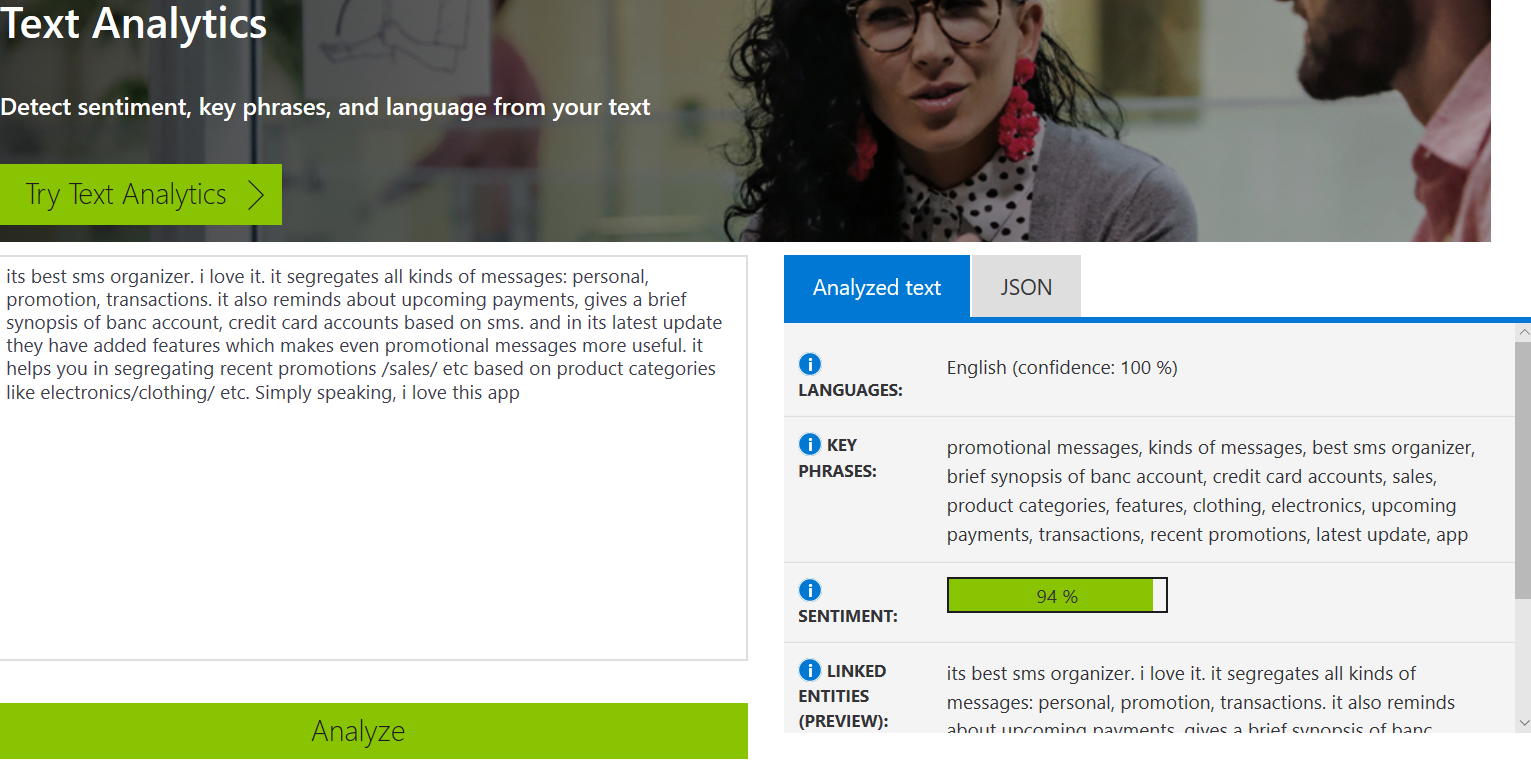
Sentiment analysis seeks to understand a subject’s attitude or emotional reaction towards a specific topic or brand. Sentiment analysis does not have to be complicated and technical. It could be something as simple as getting a person in your team to find what is being said about your brand and product on review page and identify how much of it is good and how much of isn’t. There is no need for a big budget and developer into complicated software, the cognitive service text Analytics API is a cloud-based service that provides advanced natural language processing over raw text, and includes four main functions: sentiment analysis, key phrase extraction, language detection, and entity linking.
The most of the companies and brands now use sentiment analysis to find out what people are saying about them on social media. A bad review on social media can destroy a brand’s reputation if ignored or poorly handled. They aren’t simply rating their experience with 1 star or 5 stars. They’re also expressing their thoughts, feeling, expectations in free form text. This can be challenging to handle, especially if your company is getting a lot of feedback. When you have tens or even hundreds of thousands of feedbacks to read and manage, its easy to use cognitive text analytics service API.


The Sentiment Analysis API evaluates text input and returns a sentiment score for each document, ranging from 0 (negative) to 1 (positive). This capability is useful for detecting positive and negative sentiment in social media, customer reviews, and discussion forums. Content is provided by you, models and training data are provided by the service.
Currently, Sentiment Analysis supports English, German, Spanish, and French. Other languages are in preview. In this article, I will show how we can integrate sentiment API from Xamarin Mobile application using visual studio 2019
Text Analytics API Price:
The Text Analytics API can be purchased in units of the S0-S4 tier at a fixed price. Each unit of a tier comes with included quantities of API transactions. If the user exceeds the included quantities, overages are charged at the rate specified in the pricing table below. These overages are prorated and the service is billed on a monthly basis. The included quantities in a tier are reset each month. In the S tier, the service is billed for only the amount of Text Records submitted to the service. You can read more about pricing based on country check out here.
Create Text Analytics API Key:
You need to create an Azure account, generate API key and end point URL based region for implementation to the Xamarin Mobile application.
Step 1: Create Free Azure subscription and Login to portal  
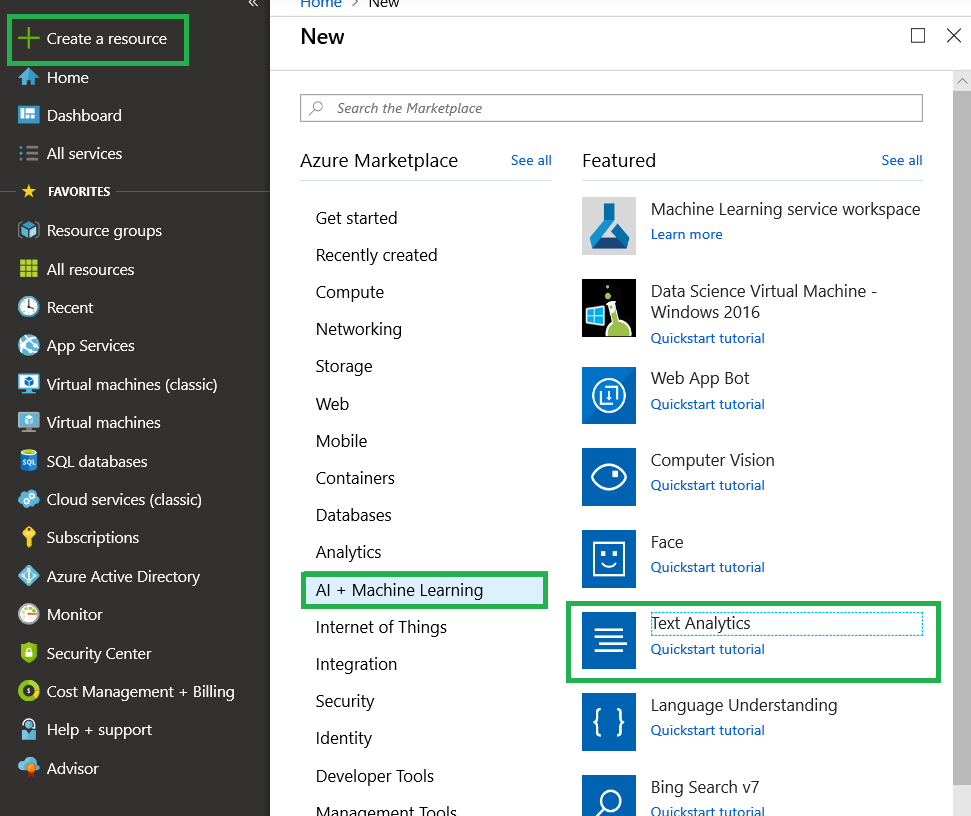
Step 2: Create On “+ Create a resource “> Under Azure Marketplace, select AI + Machine learning and discover the list of available featured. > Select “Text Analytics”
Step 3:  On the create page, provide the name, pricing, resource group and click on Create
Step 4:
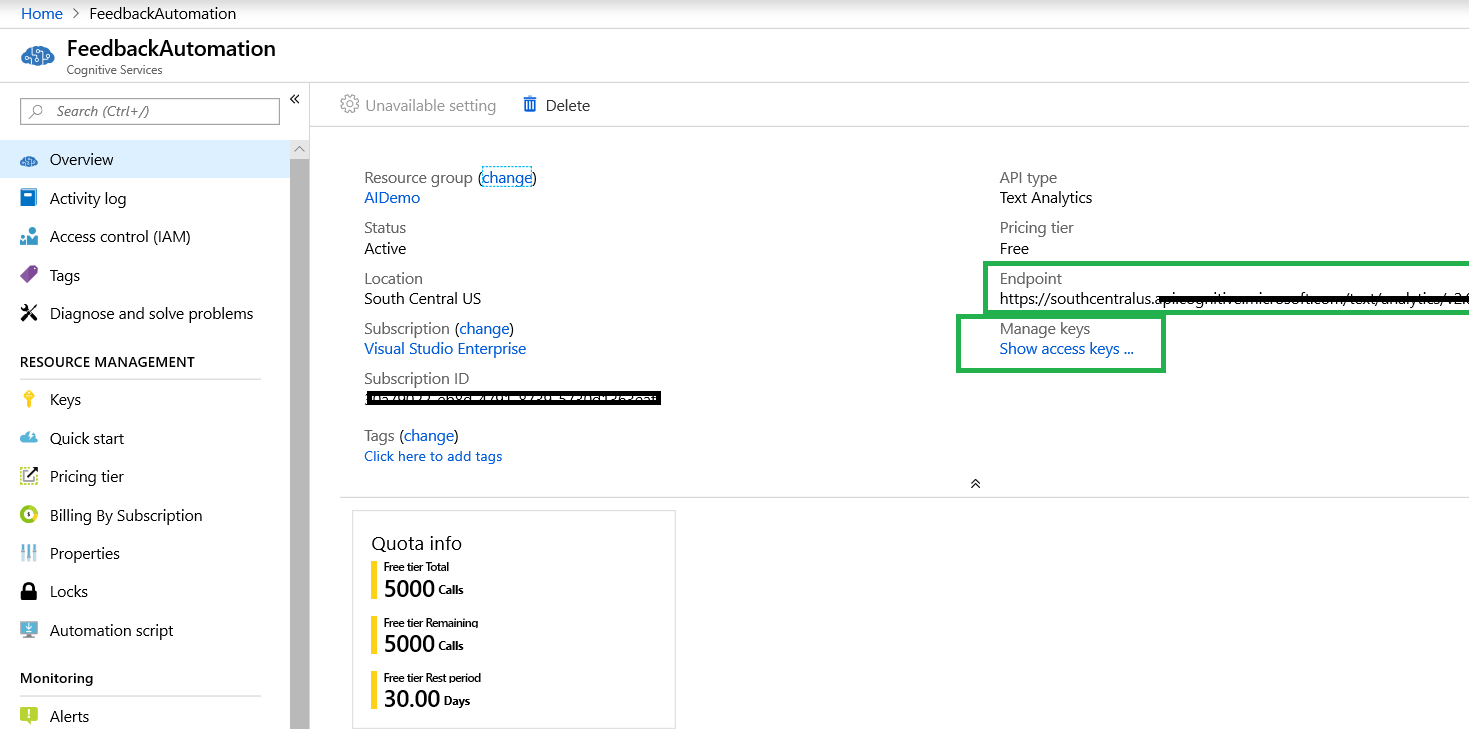
Wait for a few seconds. After the Cognitive Services account is successfully deployed, click the notification or tile in the dashboard to view the account information. You can copy the Endpoint URL and Key in the Overview section for API calls in our Xamarin applications.


Build Xamarin Forms Application using Visual Studio 2019:
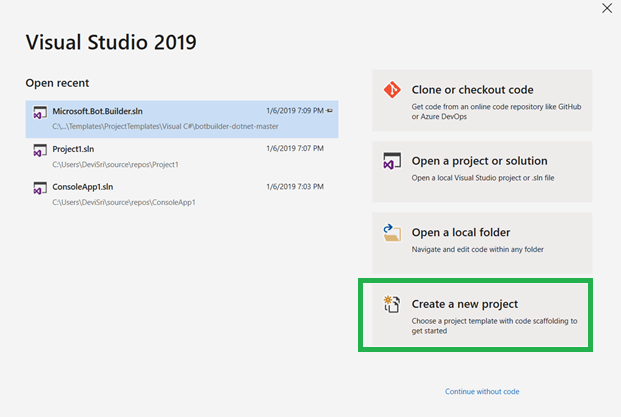
Let's start with creating a new Xamarin Forms Project using Visual Studio 2019. When accessing Visual Studio 2019 for the first time, you will come across a new interface for opening a creating the projects.
Open Run >> Type “Devenev.Exe” and enter >> Create New Project (Ctrl+Shift+N) or select open recent application.
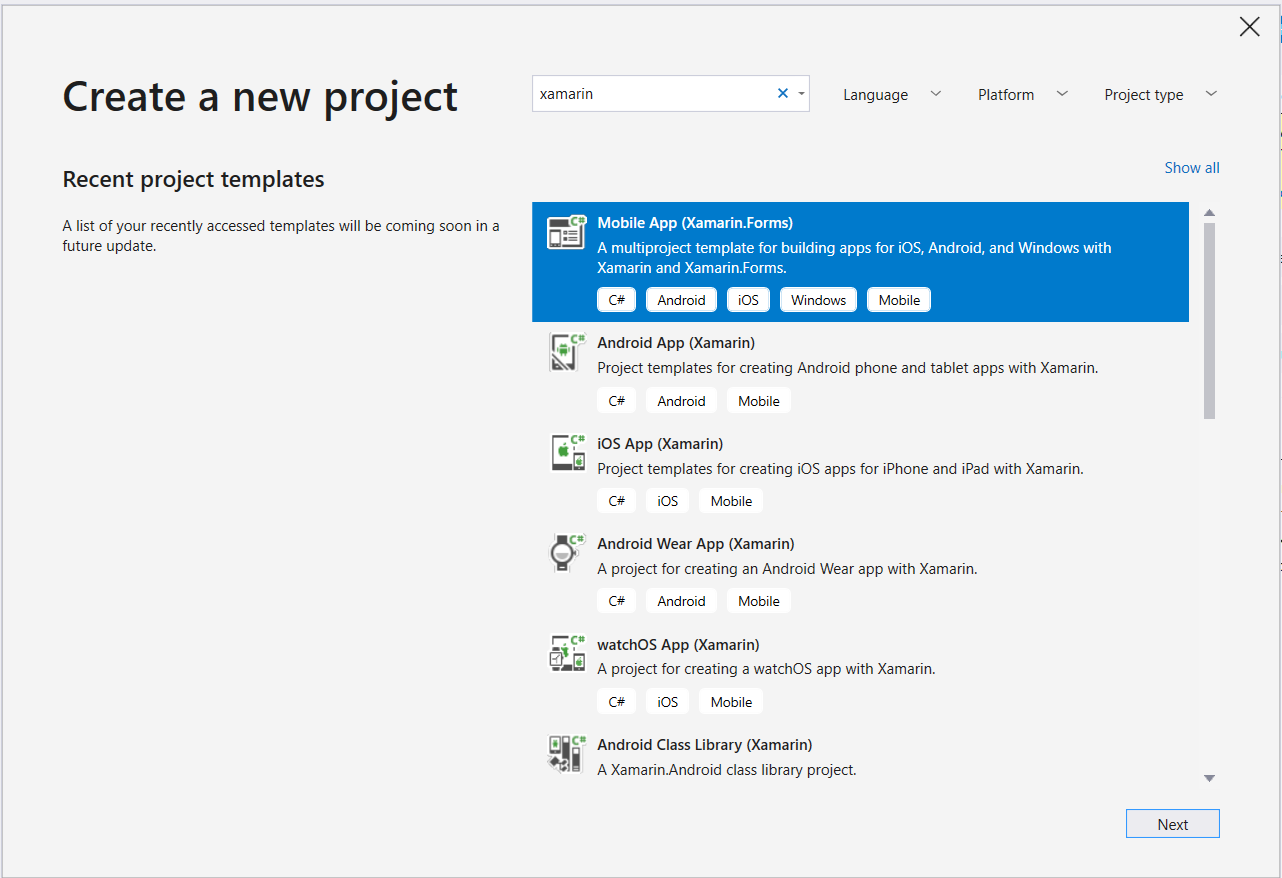
The available templates will appear on a window like below. Select Xamarin Forms application with different mobile platform.
Provide project name, Location and solution name in the following configure new project screen
Select as Blank apps and select the platform
The Solution will be created with all the platform and PCL projects.
PCL UI Design:
The UI will have a few elements on the screen and overlay content view window. Editor control for providing user input value and overlay window for show the result.
You can add Newtonsoft.JSON to solutions. Right click on Solutions > Manage NuGet Packages > select Newtonsoft.Json from Browse tab > click on Install.
<?xml version="1.0" encoding="utf-8" ?>
<ContentPage xmlns="http://xamarin.com/schemas/2014/forms"
            xmlns:x="http://schemas.microsoft.com/winfx/2009/xaml"
            xmlns:local="clr-namespace:MobileFeedback"
            :Class="MobileFeedback.MainPage">

   <ContentPage.Content>

       <AbsoluteLayout>

           <!-- Normal Page Content -->
           <StackLayout AbsoluteLayout.LayoutBounds="0, 0, 1, 1"

                AbsoluteLayout.LayoutFlags="All">
               <Image Source="product.gif"   VerticalOptions="Start" HorizontalOptions="Start"  Margin="0,0,0,0" ></Image>
               <Editor x:Name="txtfeedback" WidthRequest="100"  HeightRequest="200"></Editor>
               <Button Text="Submit" Clicked="Submit_Clicked"></Button>
               
           </StackLayout>

           <!-- Overlay -->

           <ContentView x:Name="overlay"
                AbsoluteLayout.LayoutBounds="0, 0, 1, 1"
                AbsoluteLayout.LayoutFlags="All"
                IsVisible="False"
                BackgroundColor="#C0808080"
                Padding="10, 0">

               <StackLayout Orientation="Vertical"
                  BackgroundColor="White"
                  HeightRequest="175"
                  WidthRequest="300"
                  HorizontalOptions="Center"
                  VerticalOptions="Start"
                  Margin="0,20,0,0" >

                   <Image x:Name="imgstatus" WidthRequest="70" HeightRequest="70"></Image>
                   <Label Text="" x:Name="lblStatus"></Label>

                   <StackLayout Orientation="Horizontal" HorizontalOptions="Center">
                       <Button Text="OK" FontSize="Small"
                       VerticalOptions="CenterAndExpand"
                       HorizontalOptions="Center"
                       Clicked="OnOKButtonClicked" />
                   </StackLayout>
               </StackLayout>
           </ContentView>

       </AbsoluteLayout>

   </ContentPage.Content>

</ContentPage>

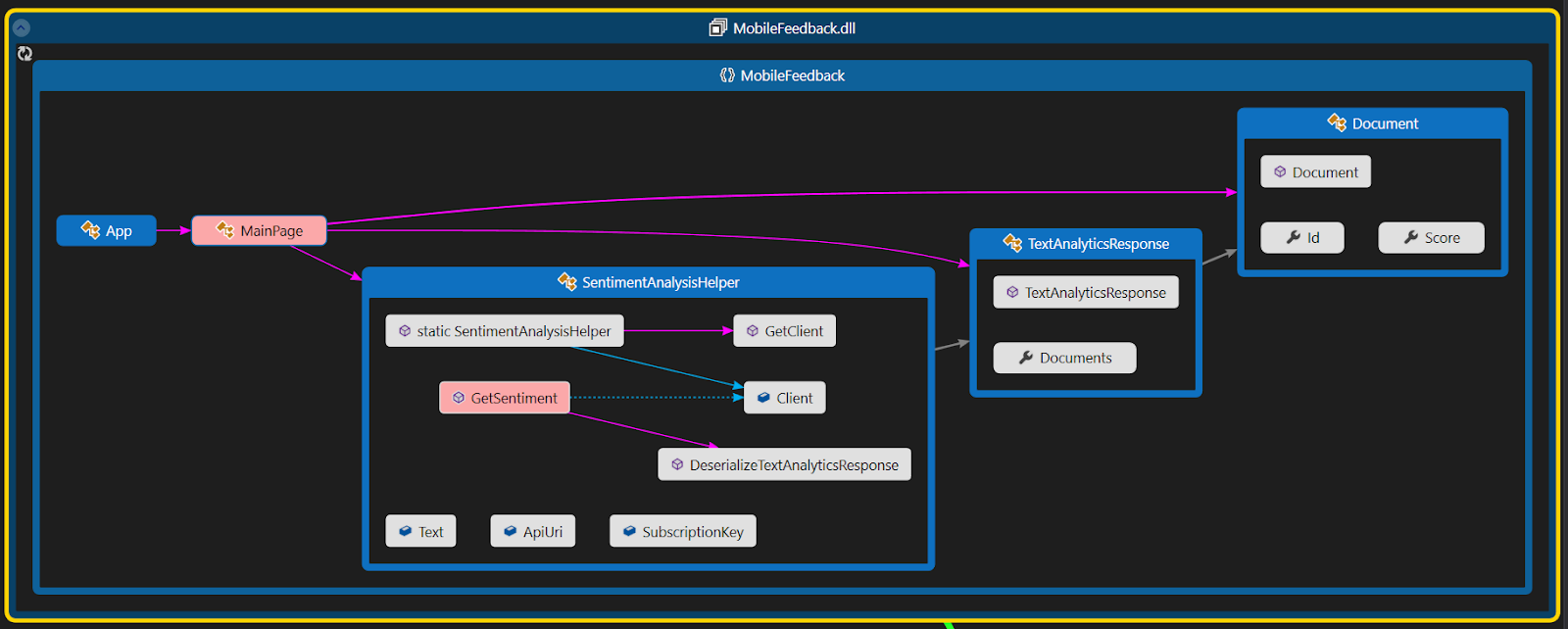
Create Document Entity Class:
Create class for Document class, it will deserialize the response and return an object of type TextAnalyticsResponse.The response format defined by the API looks like below document entity
using System;
using System.Collections.Generic;
using System.Text;

namespace MobileFeedback
{
 
    class Document
   {
       public string Id { get; set; }
       public double? Score { get; set; }
   }
   class TextAnalyticsResponse
   {
       public List<Document> Documents { get; set; }
   }

}

Create SentimentAnalysisHelper Helper Class:
You can replace Text Analytics API service endpoint and subscription key. If you don't already have these go back to the previous steps. Below is the complete class you need to add. we have to appended /sentiment to the end of the ApiUri in order to invoke the sentiment operation.
using Newtonsoft.Json;
using System;
using System.Collections.Generic;
using System.Net.Http;
using System.Text;

namespace MobileFeedback
{
   static class SentimentAnalysisHelper
   {
       private const string ApiUri = "<API url>”;
       private const string SubscriptionKey = "<your Key>";
       private const string Text = "The food was delicious and there were wonderful staff.";
       private static readonly HttpClient Client = GetClient();

       private static HttpClient GetClient()
       {
           var client = new HttpClient();
           client.DefaultRequestHeaders.Add("Ocp-Apim-Subscription-Key", SubscriptionKey);
           client.DefaultRequestHeaders.Add("ContentType", "application/json");
           client.DefaultRequestHeaders.Add("Accept", "application/json");
           return client;
       }
       private static TextAnalyticsResponse DeserializeTextAnalyticsResponse(string json)
       {
           return JsonConvert.DeserializeObject<TextAnalyticsResponse>(json);
       }
       public static TextAnalyticsResponse GetSentiment(string text)
       {
           var body = JsonConvert.SerializeObject(new
           {
               Documents = new object[]
                 {
       new
       {
         Text = text,
         Id = Guid.NewGuid()
       }
                 }
           });

           using (var content = new ByteArrayContent(Encoding.UTF8.GetBytes(body)))
           {
               var responseMessage = Client.PostAsync(ApiUri, content).Result;
               responseMessage.EnsureSuccessStatusCode();
               var json = responseMessage.Content.ReadAsStringAsync().Result;
               return DeserializeTextAnalyticsResponse(json);
           }
       }
   }
}

You can add following to code behind in the design file. we'll add a method(GetSentiment) to call the Text Analytics API sentiment endpoint. It will deserialize the response and return an object of type TextAnalyticsResponse .The method will take a string text as input, create the request body, and then send it to the Text Analytics API using an HttpClient instance.
using System;
using System.Collections.Generic;
using System.Linq;
using System.Text;
using System.Threading.Tasks;
using Xamarin.Forms;
using System.Net.Http;
using System.Threading;

namespace MobileFeedback
{
   public partial class MainPage : ContentPage
   {
      
       public MainPage()
       {
           InitializeComponent();
          
       }

       private  void Submit_Clicked(object sender, EventArgs e)
       {
          
           TextAnalyticsResponse result =  SentimentAnalysisHelper.GetSentiment(txtfeedback.Text);
           double? score = result.Documents.FirstOrDefault().Score;
           if(score < 0.5)
           {
               imgstatus.Source = "bad.png";
               lblStatus.Text = "This is the first time we have heard of this problem. Thank you for pointing it out to us. I assure you we will do our best to prevent it from happening again, We will contact with you regardng the issue";
           }
           else if(score > 0.5 && score < 0.9)
           {
               imgstatus.Source = "okay.png";
               lblStatus.Text = "We are always eager to get feedback from our customers. Thank you for taking the time to write to us.We will improve our service and our team will contact you";
           }
           else if(score> 0.9)
               {
               imgstatus.Source = "happy.png";
               lblStatus.Text = "Your valuable feedback will assist us in our continuing effort to provide our users with the best possible support experience.";
           }
           overlay.IsVisible = true;
       }
       void OnOKButtonClicked(object sender, EventArgs args)
       {

           overlay.IsVisible = false;

       }

       void OnCancelButtonClicked(object sender, EventArgs args)
       {
           overlay.IsVisible = false;
       }
   }

}

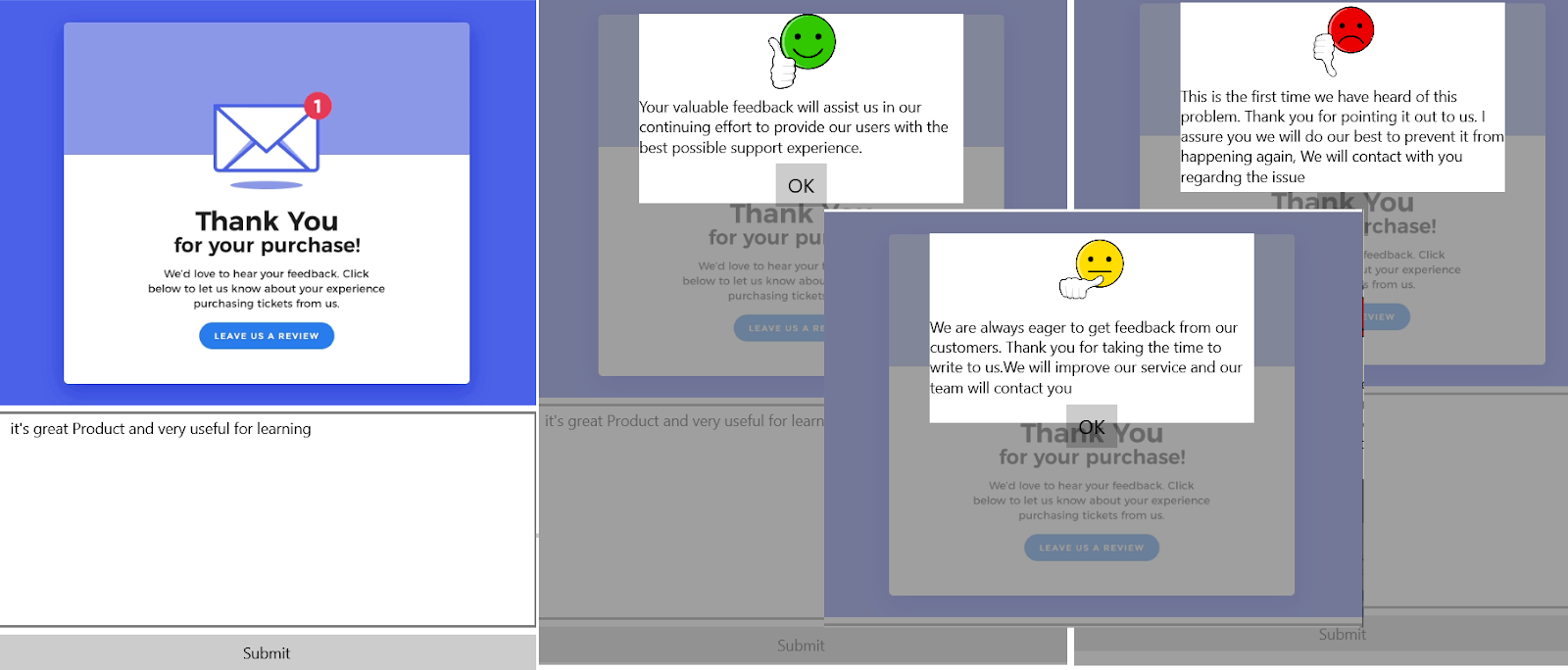
We have completed the code for consuming TextAnalytics API. Now, we can select the platform and press F5. The output looks like below

Summary

In this article, you learned how to consuming TextAnalytics API and automate customer feedback without using rating. I hope this article will help you. Please leave your feedback/query using the comments box, if you like this article, please share it with your friends.