Introduction:
On June 8 2015 at the Apple Worldwide Developers Conference Xcode version 7 was announced and good news is that you can develop and test your apps on your iOS device without a paid Apple Developer account.
This is great news for all the iOS developer , before upload store we can do testing ios application from device without a paid any payment.

In this article, I am going to share about how to deploy xamarin.ioS application to iOS device using free provisioning file
Requirements:
XCode 7 or higher
- Go to Mac machine and verify Xcode version is 7 or higher, if it’s not
update xcode
iOS 9 or higher
You can follow bellows steps for how to setup and deploy xamarin . iOS application into iOS device.
Step 1: Add Apple Account from Xcode
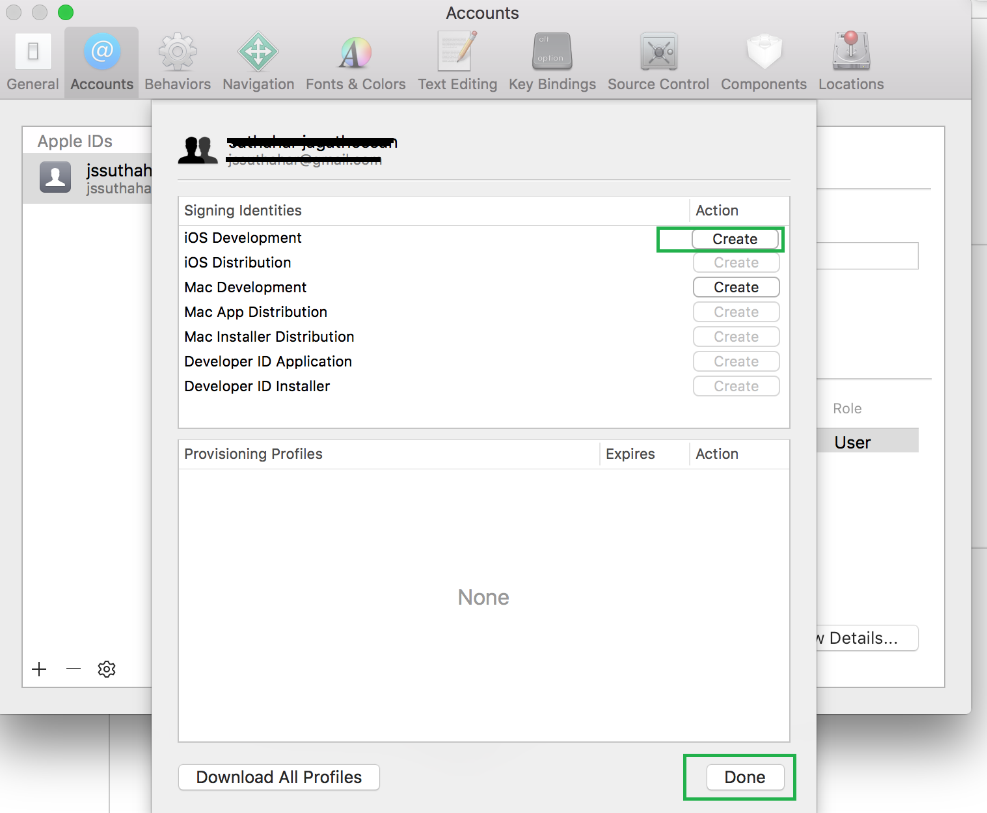
In mac Machine , Open Xcode , Xcode Menu >Preferences > Click on Account tab > Select + Add Apple ID > login with Apple ID

Click on View Details and create signing identity and click on create button next to iOS development
Step 2: Create XCode project:
Xcode > create new project > project name as “testapp ” > Connect iphone /IPad from mac machine > Select your device and press run button
You will get Code Singing issue
Issue 1: Xcode 7: Project requires a development team
If your using XCode 7 means, you will get following error

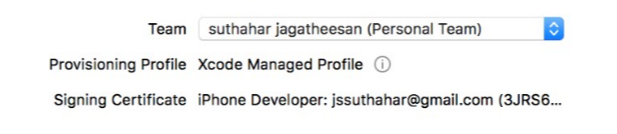
Select your Team as below from Project Options and General tab
Issue 2: Xcode8: Code signing Error in Build Error:
If you are using Xcode 8 or above, the code signing error will appear while build xcode project

Solution:
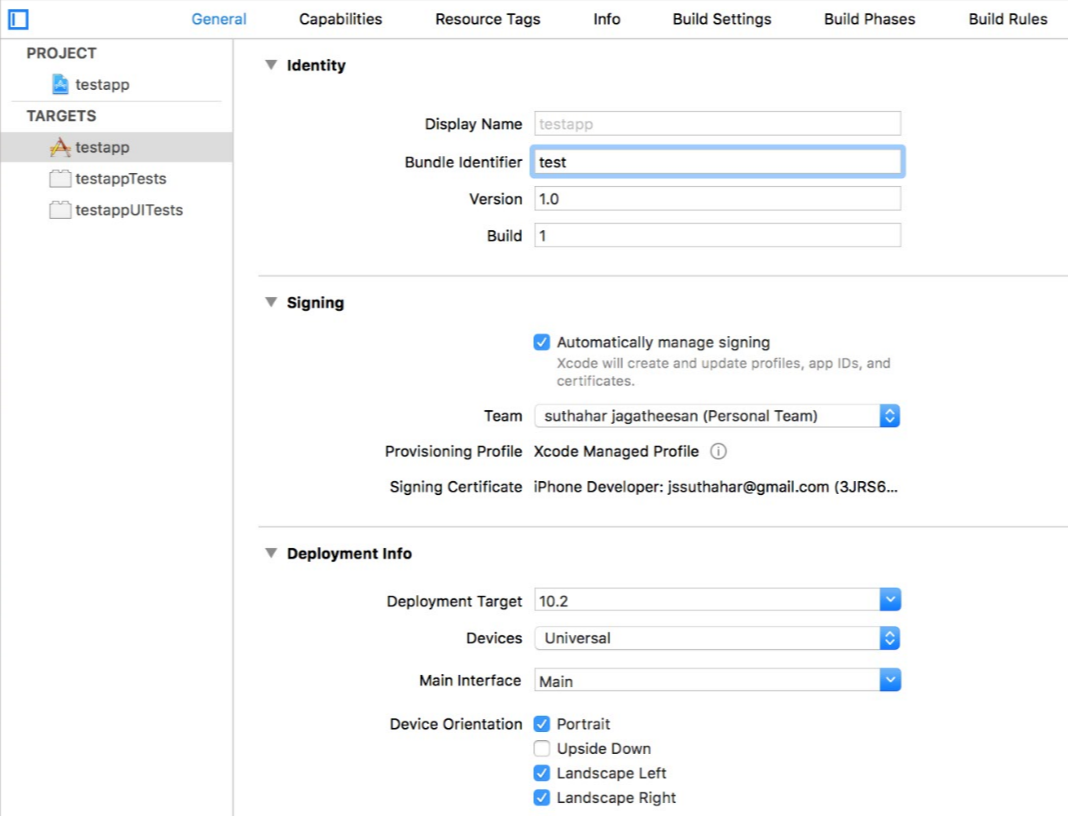
Step 2.1: Go to the ioS project editor
Step 2.2: Select the General Section
Step 2.3: Select Checkbox for Automatically manage signing
Step 2.4: Select the Personal Team you created earlier from the ‘Team’ dropdown in the ‘Signing’ section
Step 3: Trusting the certificate from device
You will get following error could not launch “Your app name “

You will see the email address associated with the Apple ID you used to code sign your app.

Tap it, then tap ‘Trust <your_email>’
Now go back to xcode and run the application
Step 4: Update bundle Identifier from Xamarin Project:
In Xamarin. iOS project , Goto Info. Plist file > Change Bundle Identifier (use same xcode project bundle identifier)
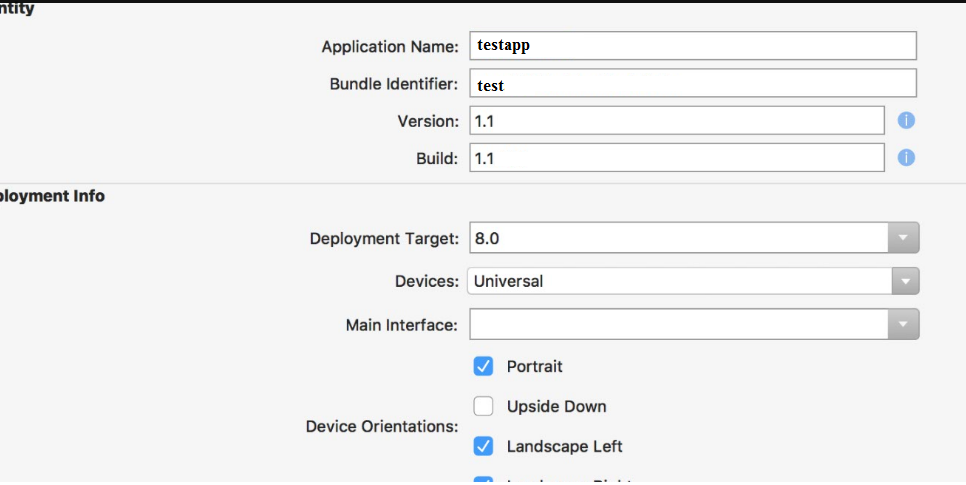
And make sure from project options and select IOS bundle signing > Signing identity select your apple account
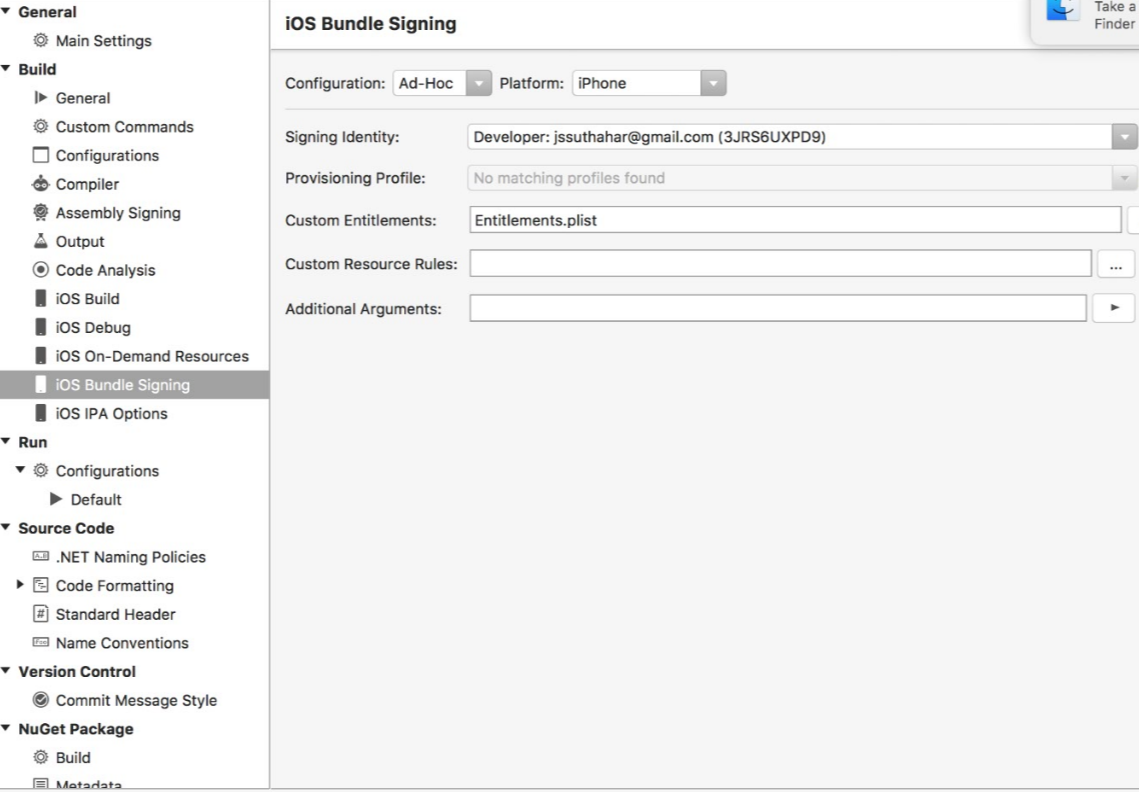
Select your iphone device from xamarin.ios project and click on run the application.

I believe this article will helpful for you deploy application to ios device , if you have question /issue/feedback share into comments box .